
We are thrilled to announce a significant enhancement to our MetalTrace® services, designed to streamline your project management. As part of our commitment to continuous improvement and customer satisfaction, we have now added Packing Lists to the MetalTrace® site.
This new feature provides even greater transparency and control over your orders.
Introducing Digital Packing Lists
Effective immediately, you can now access Packing Lists directly through the MetalTrace® portal. This update complements the existing Material Test Report (MTR) functionality, giving you a complete and secure digital documentation experience.
With this enhancement, you can:
- Expedite project planning by instantly accessing both MTRs and Packing Lists in one place.
- Reduce administrative time with on-demand access to critical shipping documents.
- Enhance traceability with a comprehensive, secure, and fully digital process from start to finish.
How to Access Your Packing Lists
Accessing your new documents is simple and follows the same secure process you already use for MTRs.
- Log in to your MetalTrace® account.
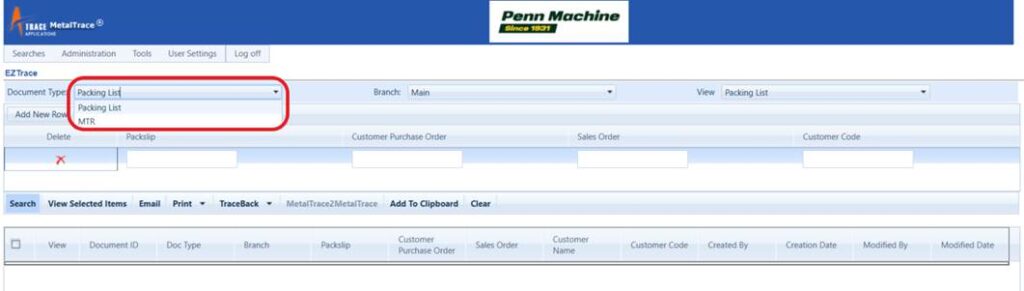
- Change the “Document Type” to “Packing List”.
- Search using your purchase order number, Heat Code, or other criteria.
- Select the desired Packing List to view, print, or email directly from the portal.
Please Note: This feature applies to all shipments from September 16, 2025, onwards. For Packing Lists related to shipments prior to this date, please contact our Sales department for assistance.
We are confident this new feature will provide immense value by making our processes more convenient and accessible for your team.
Explore the new feature today and experience a more streamlined workflow.
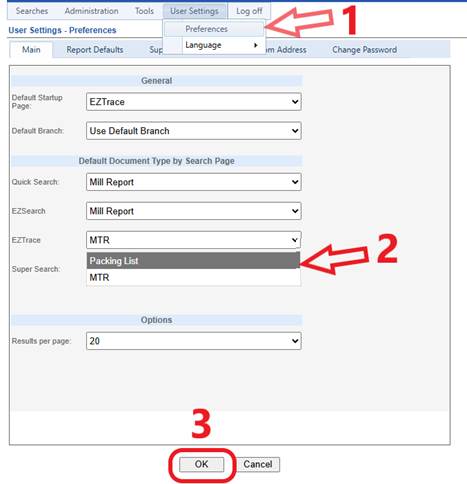
PRO TIP: If you typically access only one Document Type, you can change the default screen that appears when you login in User Settings. Log off and log back on for the change to take effect.
Should you have any questions or require assistance, please contact your Penn Machine Sales representative or email [email protected]. We appreciate your partnership and look forward to continuing to serve you.